Whitelist Domain in Google Workspace Admin Console
Sometimes important emails get blocked or sent to spam because they come from a new or external domain. To avoid this, Google Workspace (formerly G-Suite) allows admins to whitelist domains, ensuring emails from trusted senders always reach users’ inboxes.
In this guide, I’ll show you step by step how to whitelist a domain using the Google Admin Console.
Why Whitelist a Domain?
Whitelisting a domain helps you to:
- Ensure trusted emails never go to spam
- Improve email delivery from partner or vendor domains
- Reduce false spam filtering
- Maintain smooth communication with external services
Prerequisites
Before you start, make sure:
- You have Google Workspace Admin access
- You know the domain name you want to whitelist (e.g.,
example.com)
Step-by-Step: How to Whitelist a Domain in Google Admin Console
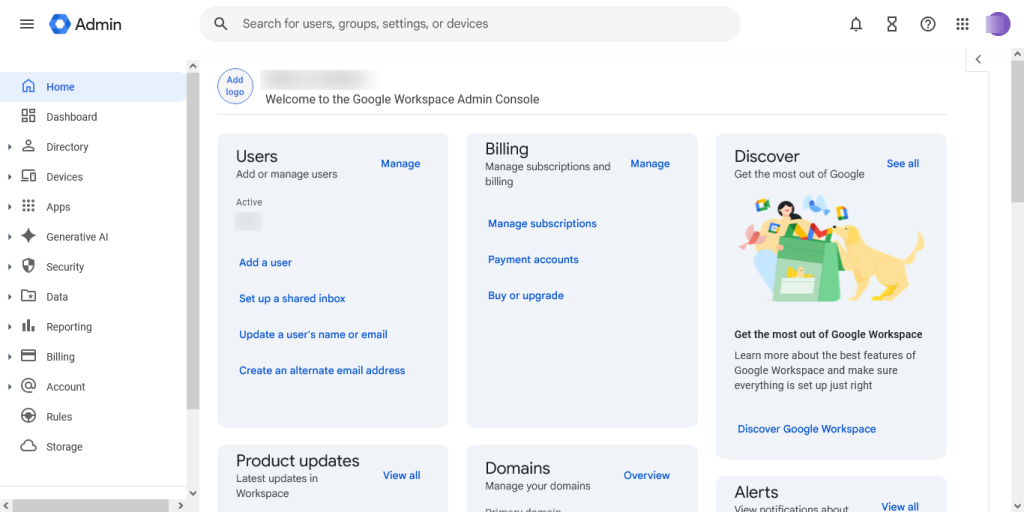
Step 1: Sign in to Google Admin Console
- Go to https://admin.google.com
- Log in using your admin account
Step 2: Navigate to Gmail Settings
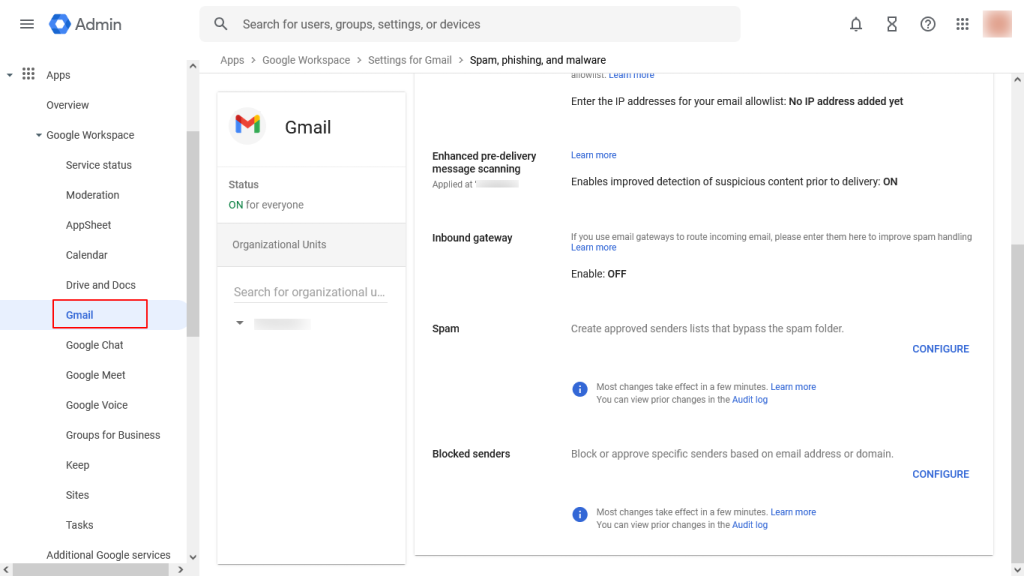
- From the Admin Console dashboard, click Apps
- Select Google Workspace
- Click on Gmail
- Open Spam, Phishing and Malware
Step 3: Configure Spam Whitelist Settings
- Click Configure
- Note (If the spam section already configured then just edit the settings)
- For new setting enter a description.
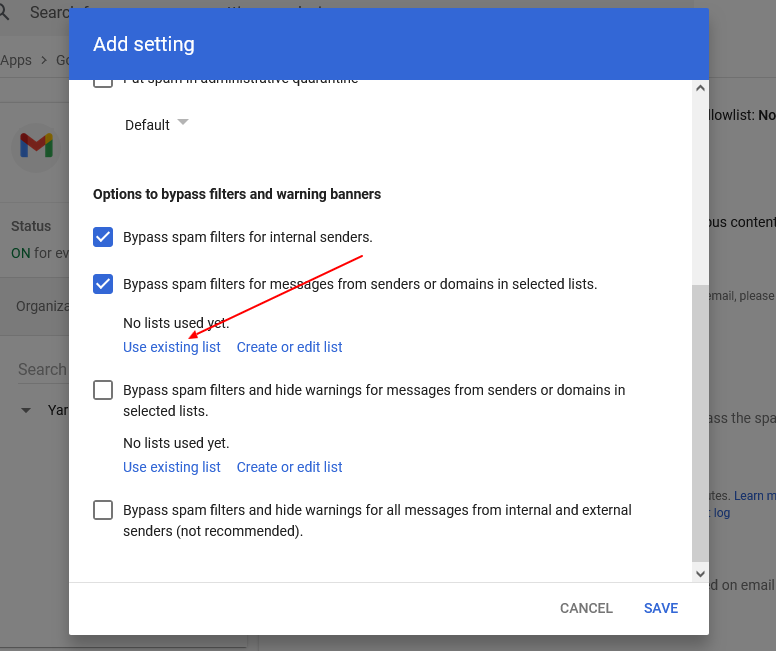
- Make sure the 2nd bypass section is checked.
- (Bypass spam filters for messages from senders or domains in selected lists.)
- Click create list.

Step 4: Add the Domain to Whitelist
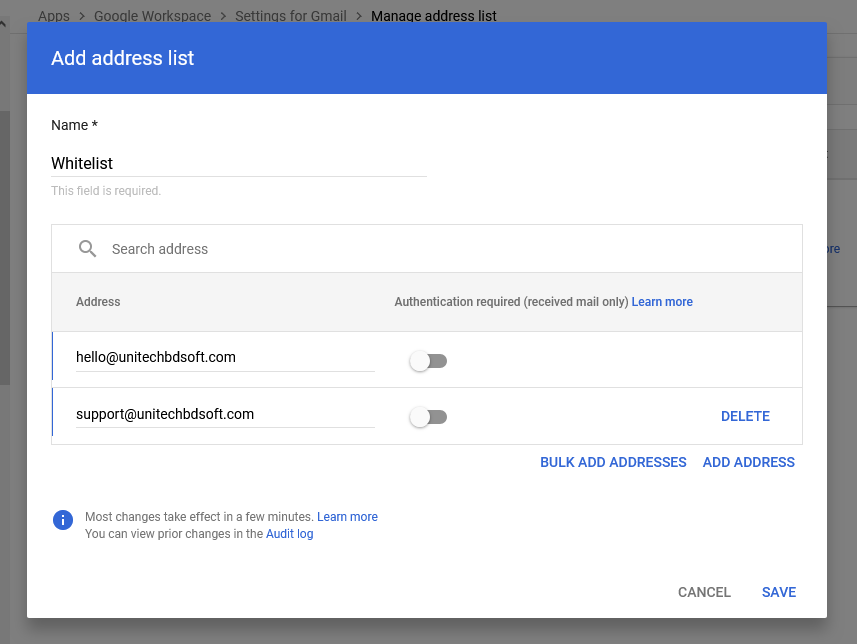
- Click Add.
- Enter the domain name
or email address. - Click Save.
- Wait for changes to propagate (can take up to 24 hours, usually faster).
Step 5: Use the Existing Whitelist Setting
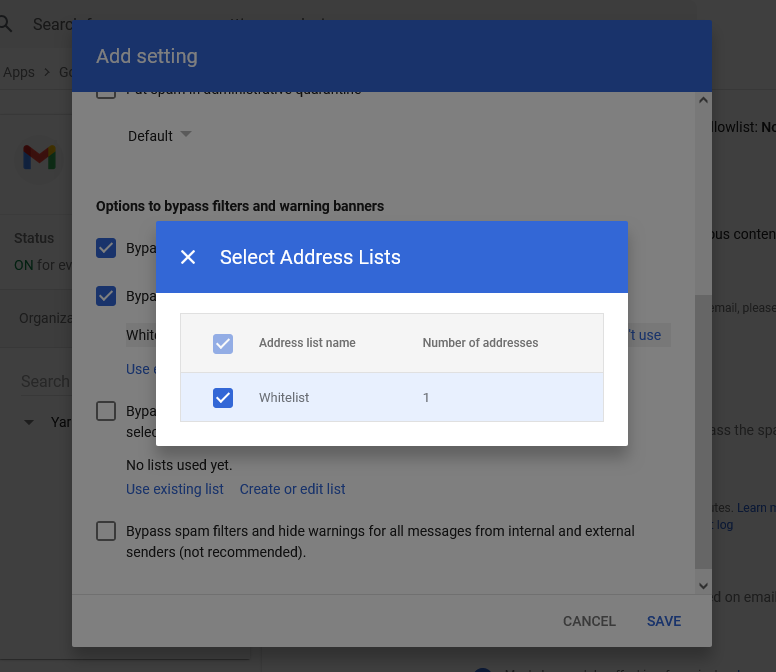
- Click Use existing option.
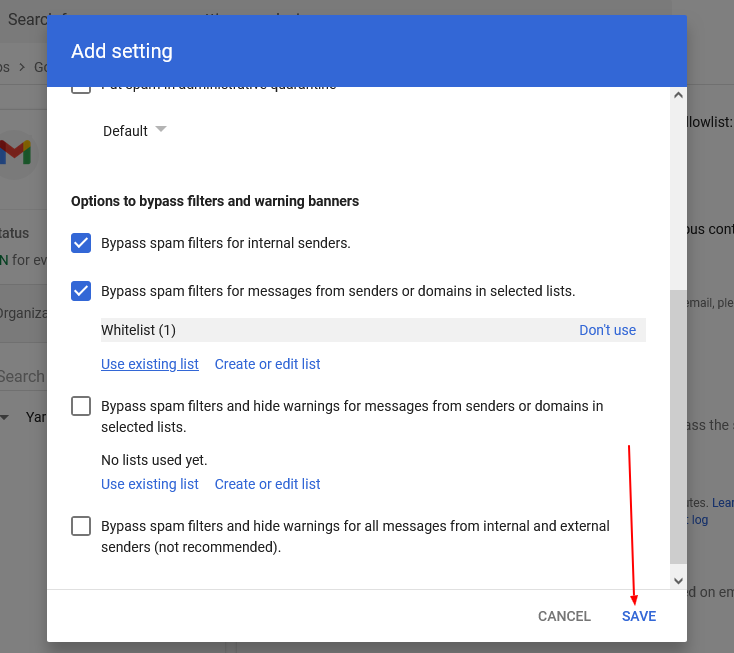
- From the list, select the previously created whitelist setting.
- Click Save to apply the changes.
⚠️ Important Best Practices
- Only whitelist trusted domains
- Avoid whitelisting unknown or public email providers
- Review rules periodically to prevent security risks
❓ Common Issues
Emails still going to Spam?
- Ask sender to set SPF, DKIM, DMARC
- Check message headers
- Verify the rule scope (entire org vs OU)
🏢 Need Professional Help?
If you’re facing:
- Email delivery issues
- Spam filtering problems
- Google Workspace setup or migration
👉 We provide professional Google Workspace support and management services.
📩 Contact us today to secure your business email system.
Need help getting started? We’ve got you covered!
Unitech BD Software is a trusted Google Workspace (G Suite) reseller in Dhaka, Bangladesh.
We help businesses across Bangladesh set up and manage their Google Workspace and Outlook email systems for secure, professional communication.
Ready to protect your data – without the complexity?
👉 Contact Unitech BD Software today to learn about our Google Workspace services!
Phone: +88 02 48956492
Cell: +88 01782 656 388
Email: info[at]unitechbdsoft.com
🏢 Office Address: Plot #87, BNS Center (4th floor), Suite No. #507/A, Dhaka – Mymensingh Highway, Sector #07, Uttara Model Town, Dhaka-1230, Bangladesh.
For more info visit: https://unitechbdsoft.com/google-email-services-dhaka-bangladesh.php